Background removal · iPhone
Remove the background from any photo. One tap.
Get high-detail cutouts of people, products, and pets. Save transparent PNGs, drop new backgrounds behind your subject, or generate a scene — all from your iPhone.
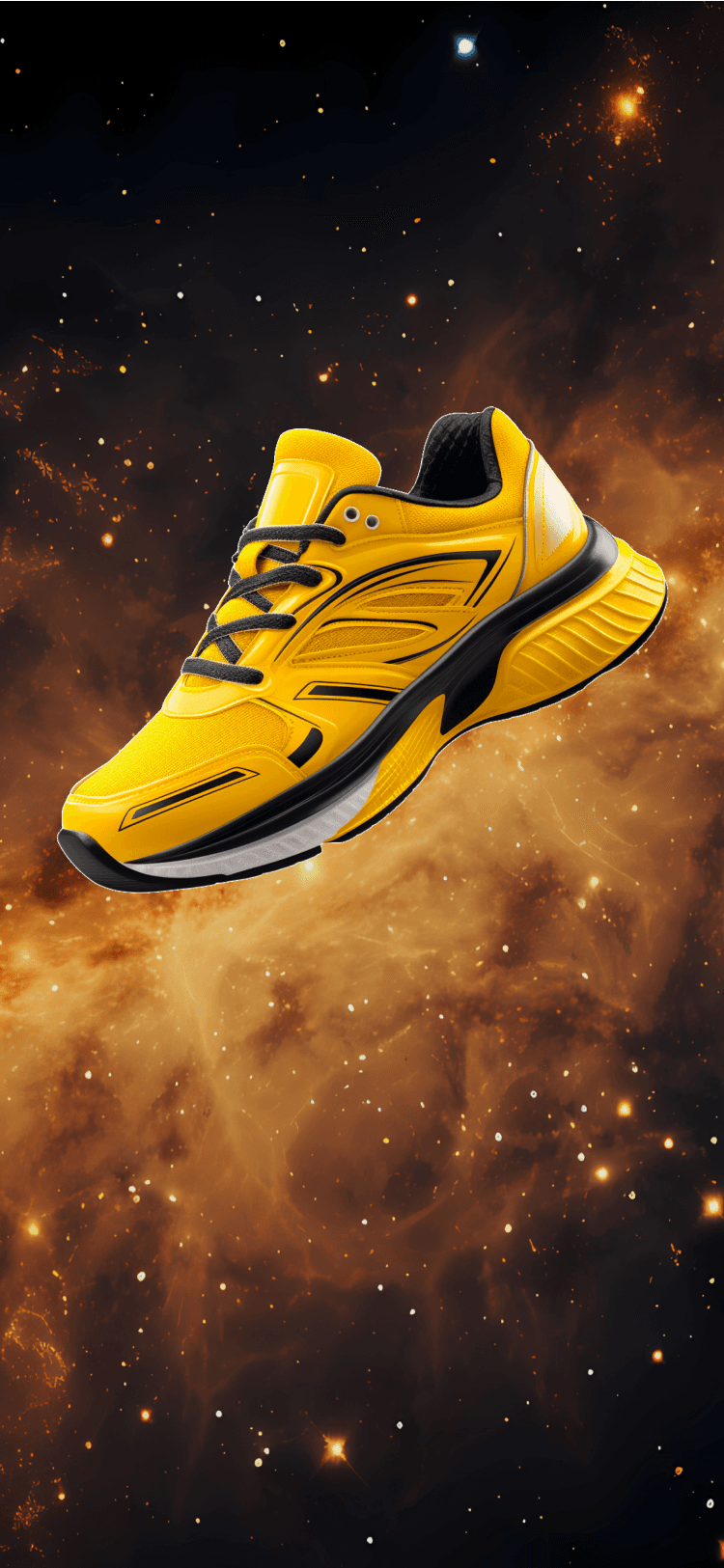
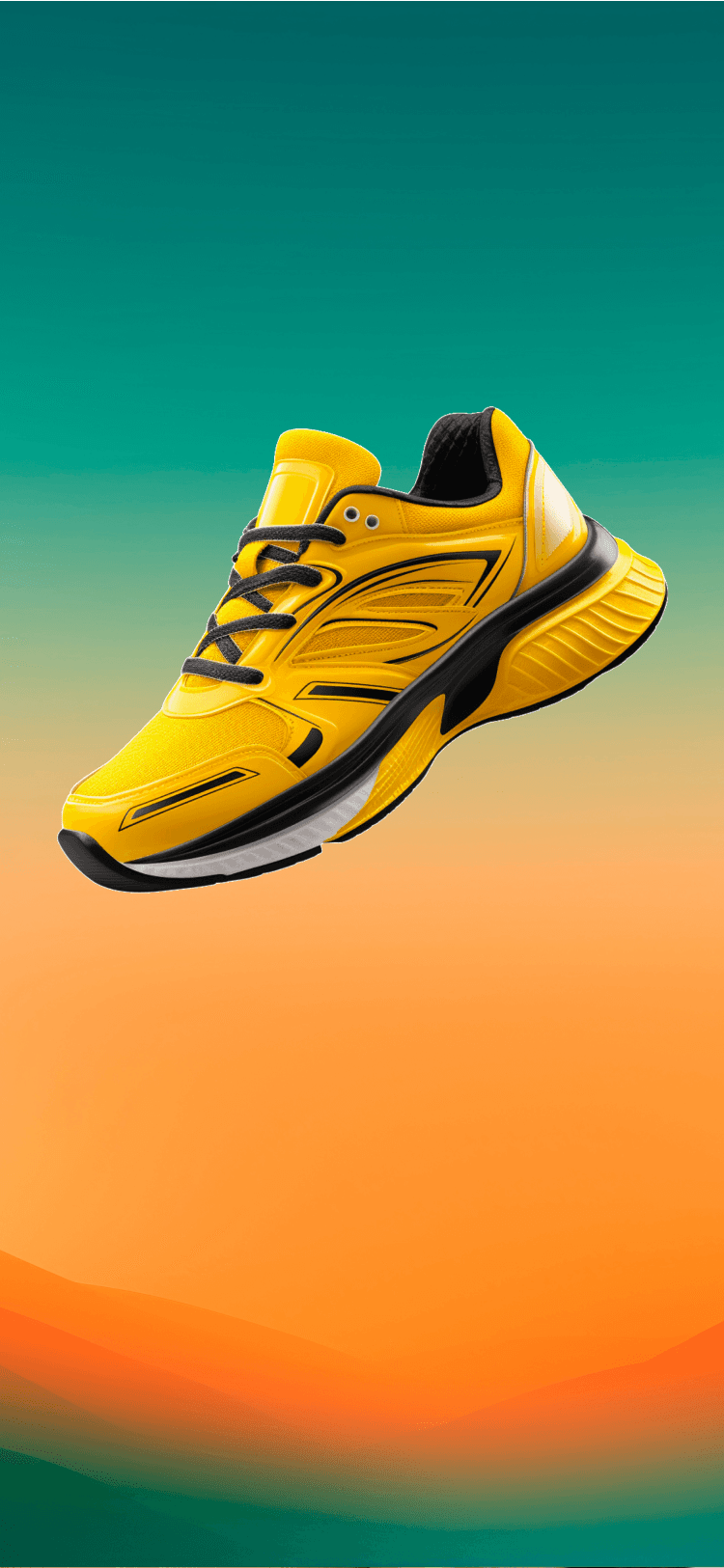
How to remove a background
Three taps to a clean cutout.
Import your photo
Pick a photo from your camera roll or shoot directly in Magic Retouch.
Step 1Let AI do the cutout
The AI isolates your subject and preserves hair, fur, and thin edges.
Step 2Save or replace
Export a transparent PNG, place a solid color, or generate a new AI background.
Step 3
Made for
Real photos, real edges.
Product photos
Isolate items for e-commerce listings and marketplaces. Clean edges around packaging, glass, and text.
Portraits and headshots
Preserve flyaway hair and glasses so cutouts look natural — not cardboard.
Pets and fur
Handles fur boundaries better than a manual selection so cutouts stay soft.
Social posts
Drop a subject on a solid color, gradient, or scene for Instagram and TikTok posts.
Stickers and reactions
Save transparent PNGs to build sticker packs or reactions.
Design mockups
Extract subjects for mockup templates without opening a desktop editor.
Why it works
Built for photos, not perfect studios.
- Preserves hair, fur, and semi-transparent edges
- Handles multiple subjects in one photo
- Exports at the original resolution as a transparent PNG
- Replace with a solid color, gradient, or AI-generated background
- Works with photos taken on any iPhone — no special lighting needed
Background remover — common questions
- The AI is trained on portraits and pets and handles wispy hair and fur better than manual selections in most cases. Complex or low-contrast edges may still need a quick brush touch-up.
- Yes. Export the cutout as a transparent PNG at the original photo resolution and use it anywhere transparent images are supported.
- You can drop a solid color, a gradient, one of your photos, or generate a new AI background from a text prompt.
- The background removal step usually runs in the cloud so the AI model can do its best work. Check the app’s privacy details for the current processing behavior.
- See our privacy policy for exact retention and deletion behavior. We do not use your photos to train new models.
関連機能
Remove objects
Brush over anything. AI fills the space so it looks like it was never there.
Enhance photos
Sharpen detail, fix lighting, and bring old photos back to life.
Remove people
Erase strangers, tourists and photobombs from your best shots.
AI photo editor
The full editor — object cleanup, backgrounds, enhance, and text prompts.
Get Magic Retouch
Get a clean cutout in under a minute.
Install Magic Retouch to remove backgrounds directly on your iPhone.